![ETR-Logo-Color-Tagline.png]](https://support.etr.org/hs-fs/hubfs/ETR-Logo-Color-Tagline.png?height=40&name=ETR-Logo-Color-Tagline.png)
Welcome to HealthSmart digital! Let's get you oriented. This friendly walk-through is your first stop to confidently navigating lessons, exploring content, and finding all your essential teaching tools.
Anatomy of a Lesson
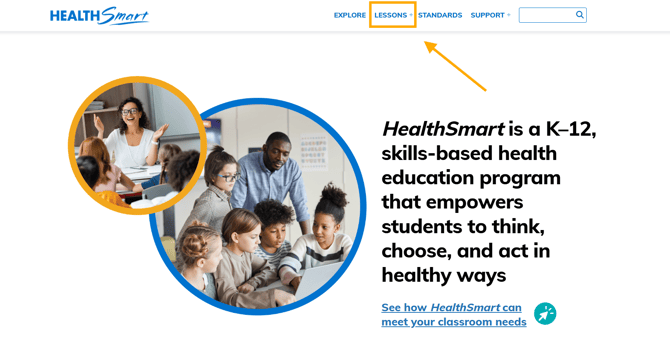
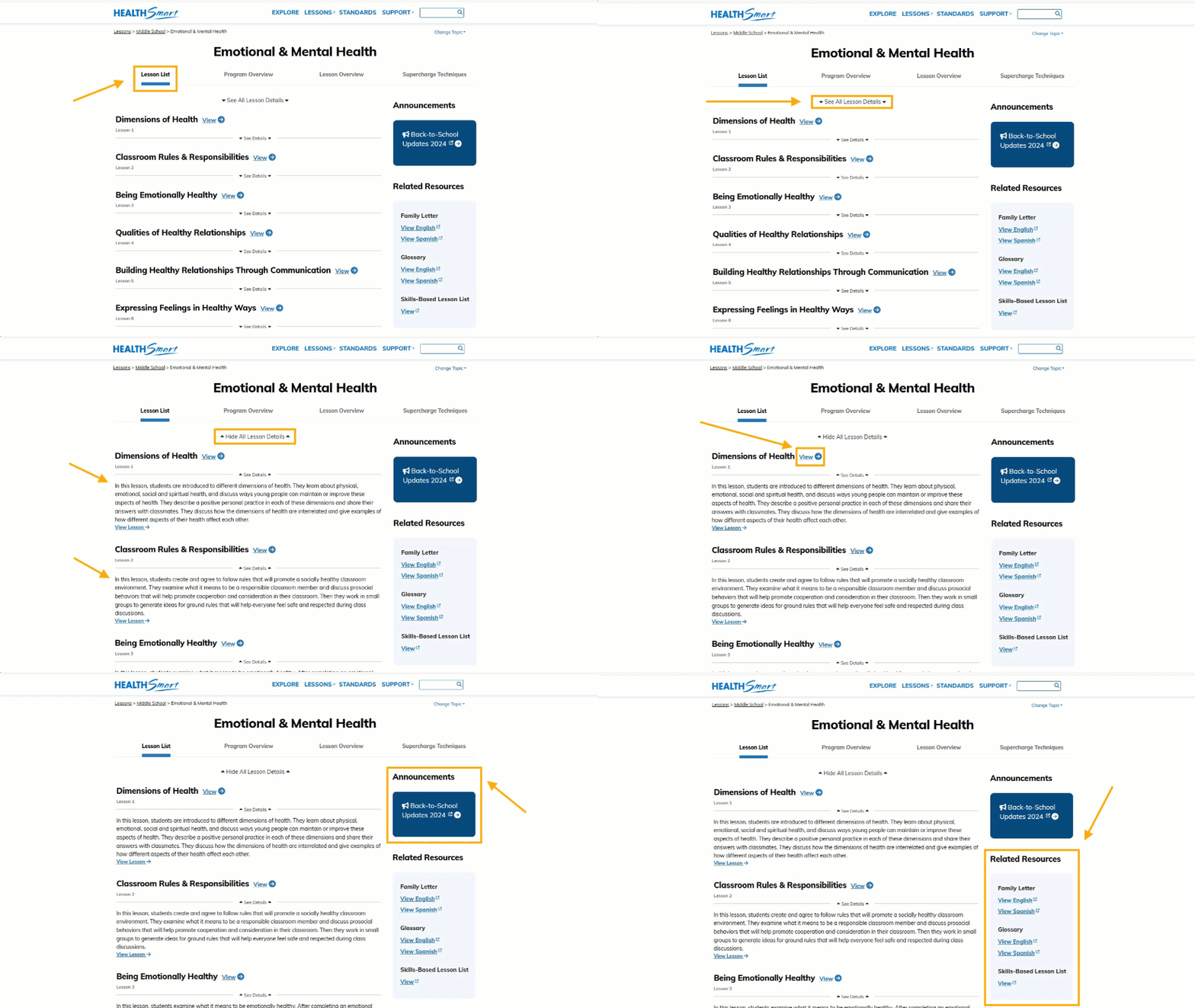
Start by going to the Lessons tab in the main menu.
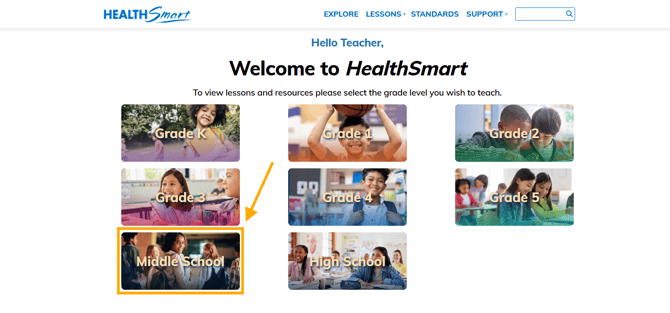
Choose a grade level from the options available in your digital subscription.
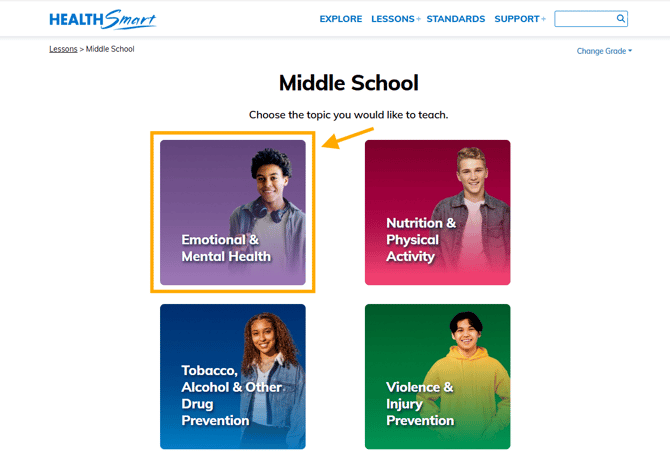
Choose a content area from the options available in your digital subscription.
On the Lesson List tab, you can find the following:
- Lesson List: All lessons in the selected content area available in your digital subscription.
- See All Lesson Details: Expands the list to include a summary of each lesson.
- View Lesson: Opens the individual lesson containing all teacher and student materials.
- Announcements: Contains new updates about HealthSmart features and/or content.
- Related Resources: Content area materials such as the Family Letter and Glossary.
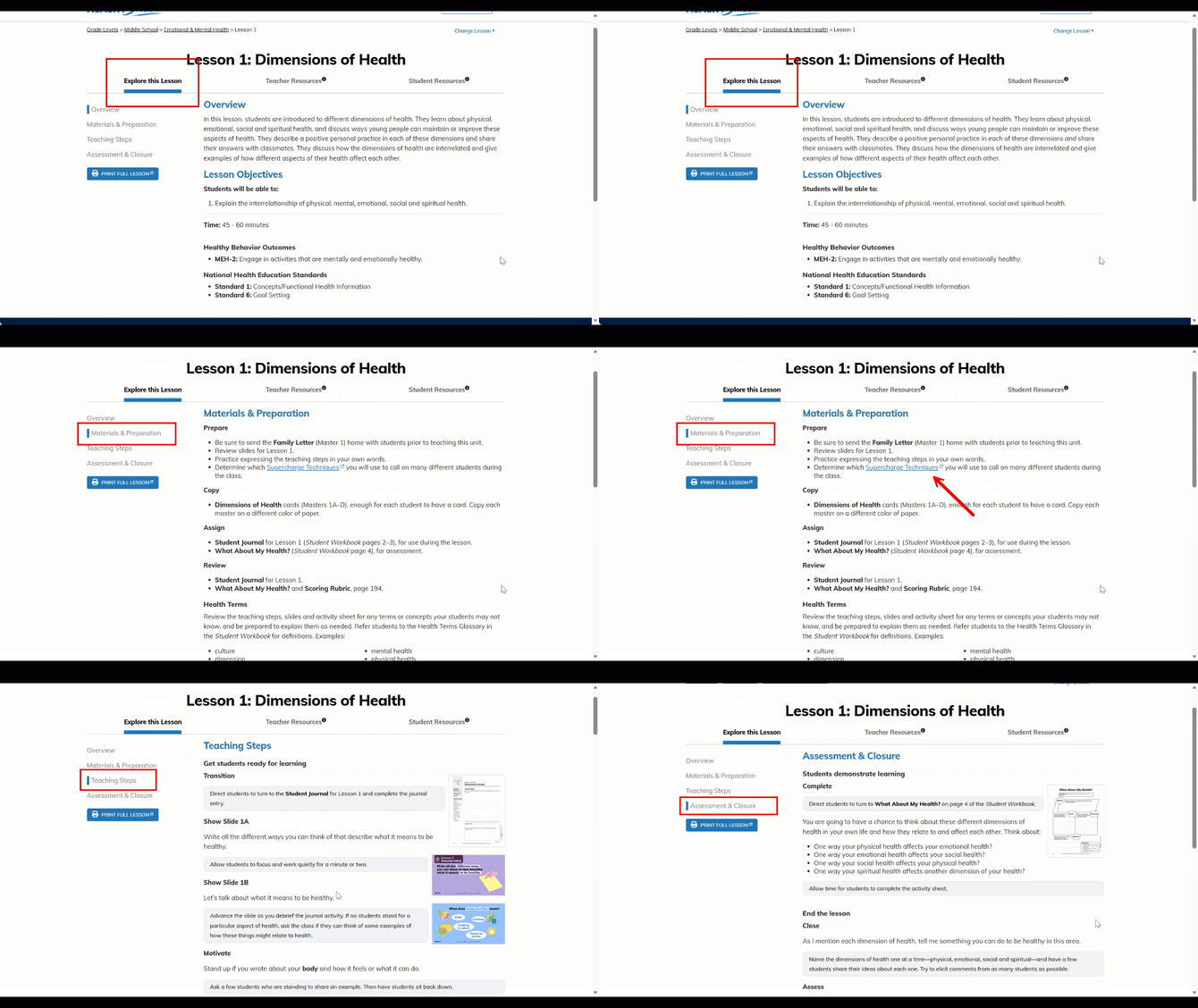
When you click Explore This Lesson tab, here's exactly what you'll find to help you plan and teach:
- Overview:
A simple summary of what the lesson covers – great for getting the big picture before you dive in.
- Lesson Objectives: Clear, student-friendly goals that tell you exactly what students should be able to do by the end of the lesson.
-
Time Estimate: A realistic guide to how long the lesson will take – usually between 45–60 minutes – so you can plan your class period with confidence.
-
Healthy Behavior Outcomes: The key health behaviors the lesson is designed to support and reinforce.
- National Health Education Standards: Which official standards the lesson aligns with – helpful for planning, documentation, or sharing with administrators.
- Materials & Preparation
This section tells you exactly what to do before students arrive:
-
Prepare: things like sending home family letters, reviewing slides, practicing teaching steps, and planning participation techniques.
-
Copy: any handouts or cards you'll need, including tips on using different paper colors to stay organized.
-
Assign: which pages in the Student Workbook or Student Journal students will use during the lesson.
-
Review: answer keys, rubrics, or scoring guides to help you assess student work.
-
- Teacher Steps: Clear directions on what to do and when.
- Assessment & Closure: makes it easy to see what students learned and end things on a strong note.
-
Which workbook or journal page students should turn to
-
Clear prompts or questions for students to answer
-
Instructions on what to say to introduce the activity
-
Note:💡 This is your chance to see who really "got it" before moving on.
Skill-Based Lessons
Every yellow badge you see is a skill-based activity! That means each one focuses on a specific health skill students can practice and apply in real life.
e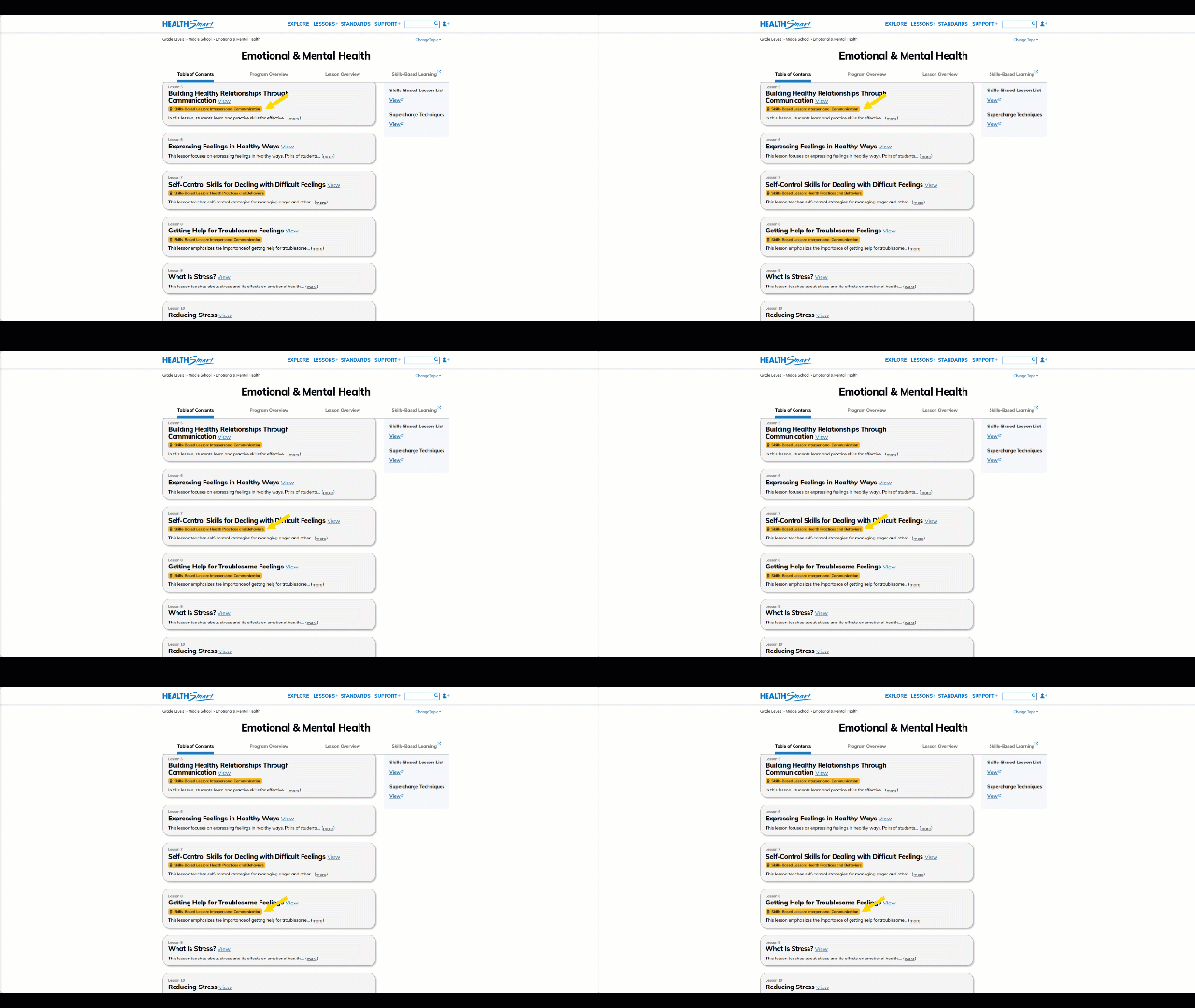
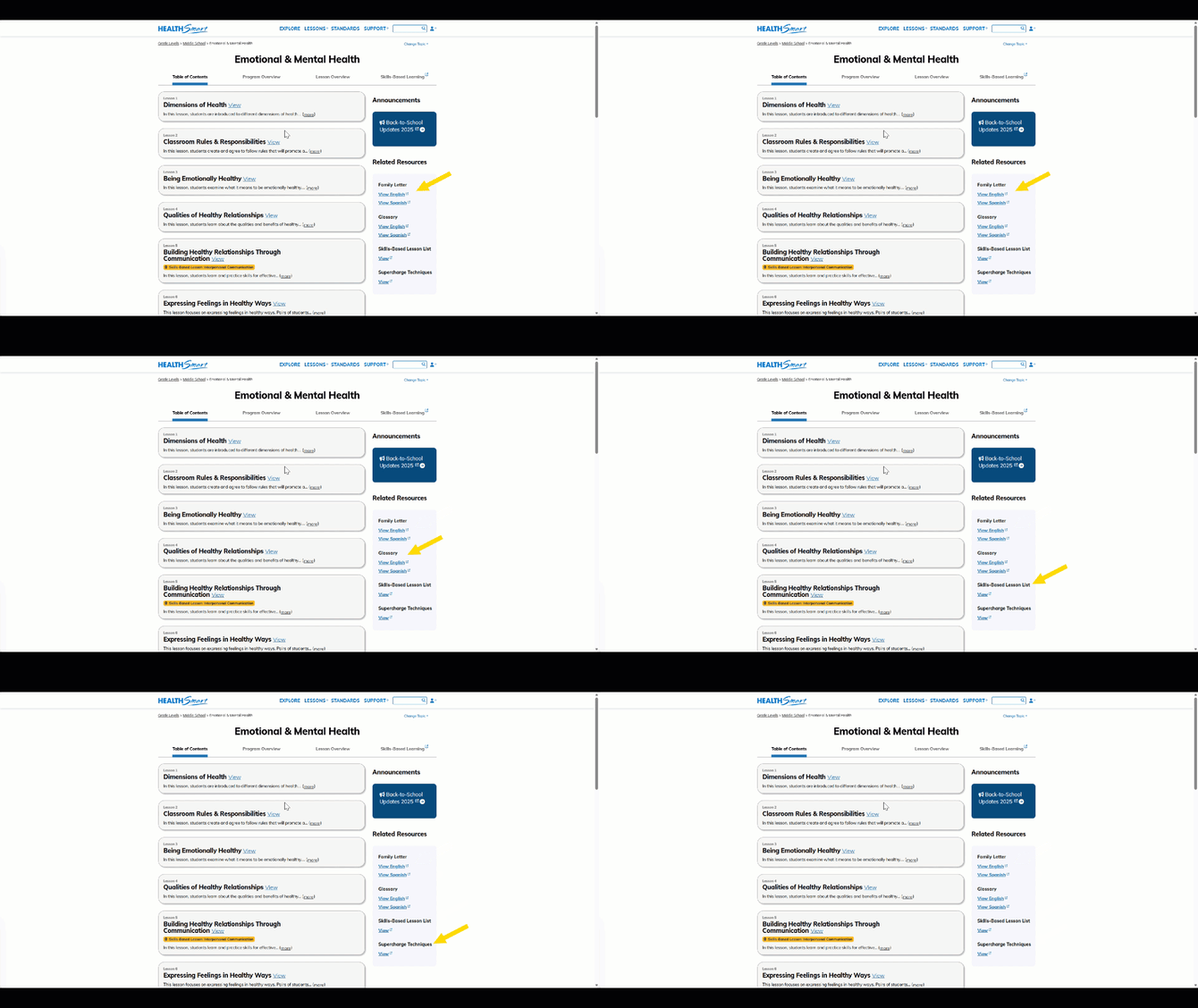
"Related Resources" on the Table of Contents Page
On the Table of Contents page for each unit, is a great starting point for seeing all your lessons at a glance. But did you know there are some helpful extras hiding just below the lesson list?
Step-by-step:
- Scroll down past the list of lessons (Lesson 1 through Lesson 6).
- Keep going until you see a section labeled "Related Resources" – it's usually to the right, under "Announcements."
- In that section, you'll find handy materials like:
- Family Letter (available in both English and Spanish)
- Glossary (also in English and Spanish)
-
How you can use it:
- Pre-teach vocabulary before starting a lesson.
- Support English learners by providing definitions in Spanish.
- Create matching games, word walls, or flashcards.
- Send home with families so caregivers can reinforce terms.
- Use as a quick reference during class discussions or writing assignments.
-
- Skills-Based Lesson List
-
How you can use it:
- Plan cross-lesson skill-building by seeing at a glance which lessons teach which skills.
- Find replacement activities if you need to skip a lesson but still cover a key skill.
- Align with standards for lesson planning or evaluations.
- Differentiate instruction by pulling skill-specific lessons for students who need extra practice.
- Create mini skill units by grouping lessons that target the same skill.
-
- Supercharge Techniques
-
How you can use it:
- Spice up a lesson that feels a little flat or routine.
- Add 5-minute brain breaks or movement activities.
- Extend learning for students who finish early.
- Increase student talk time with discussion prompts.
-
-
-
-
- Refresh a lesson you've taught many times with a new twist.
-
-
To open any resource:
- Just click the "View" button next to the item you want.
For the Family Letter or Glossary, you can choose between English or Spanish – just click the one you need.
Teacher Resource Page
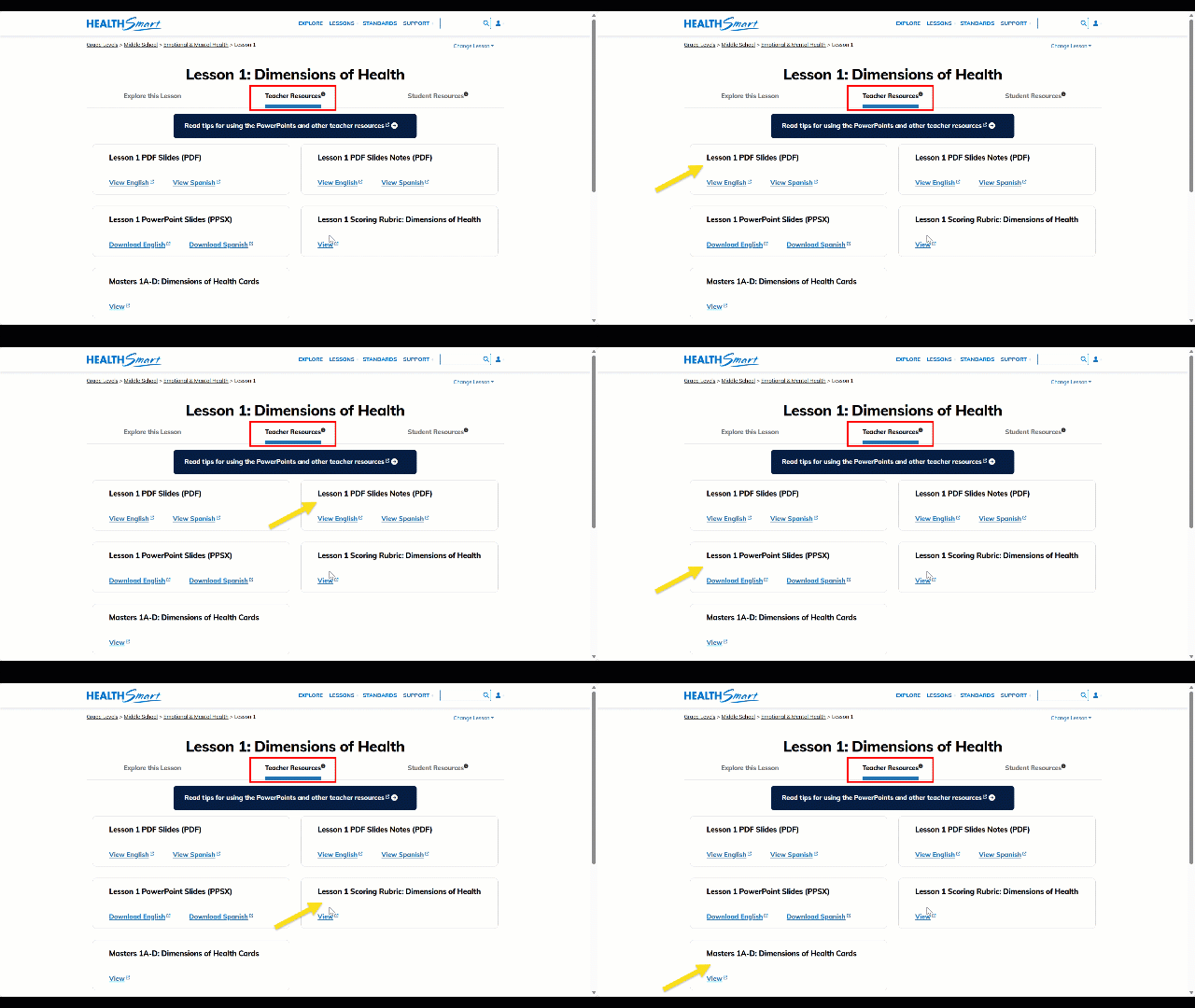
On the Teacher Resources page, you'll find:
| What Is It? | What You Do With It? |
|---|---|
| PDF Slides | View online in English or Spanish. Great for projecting or quick reference |
| PDF Slides Notes | Teacher talking points and notes to go with each slide – view in English or Spanish |
| PowerPoint Slides (PPSX) | Download the full slideshow in English or Spanish – edit or present directly |
| Scoring Rubric | View the rubric so you know how to assess student work |
| Masters 1A-D: Dimensions of Health Cards | Printable cards for hands-on activities – perfect for group work or stations |
💡 Pro tip: At the top of the page, there's a helpful yellow note that says "Read tips for using the PowerPoints and other teacher resources!" Please don't skip this! It has great ideas.
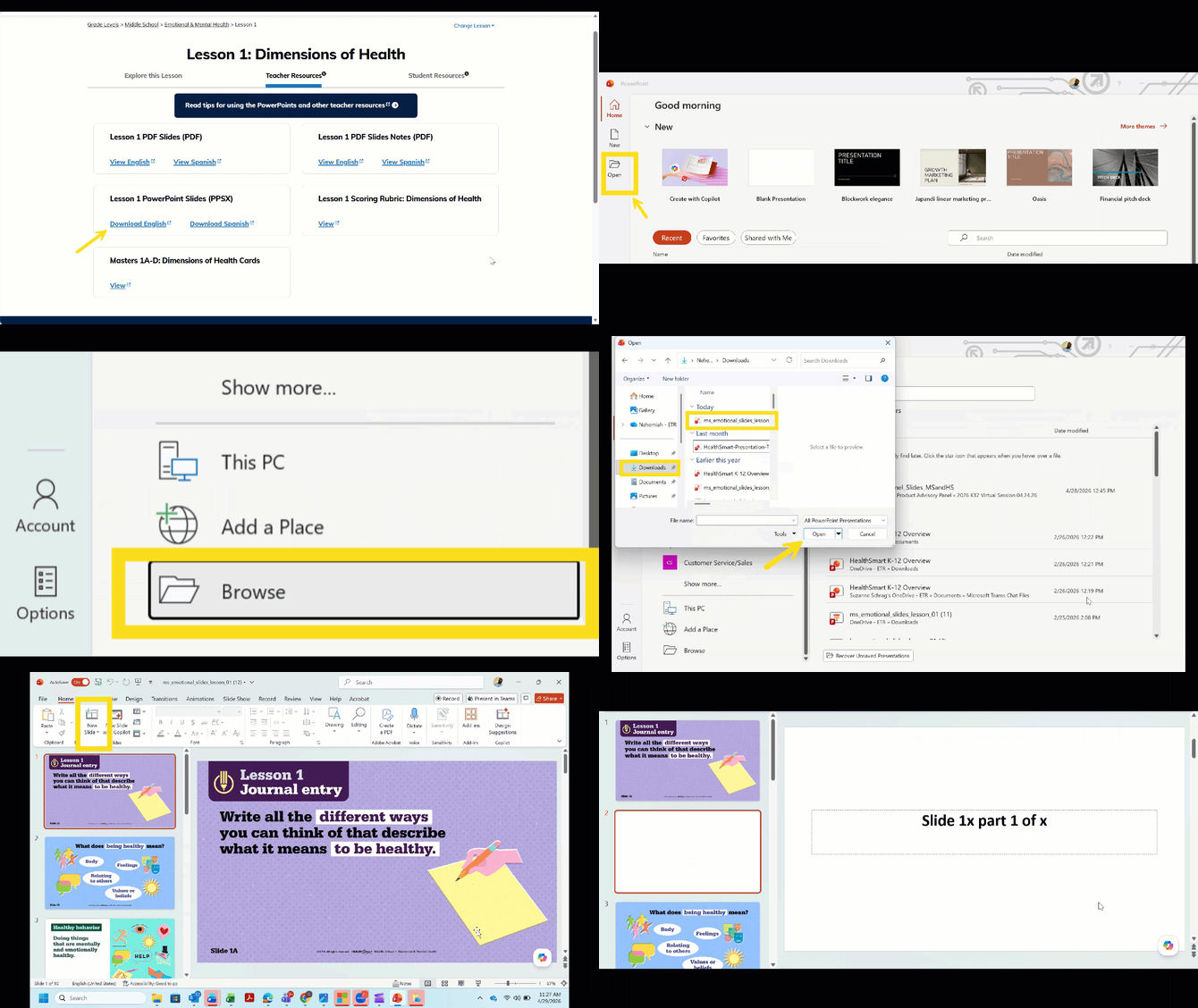
Step 1: Download Your Slides
Click either:
-
Download English – for the English version of the slideshow
-
Download Spanish – for the Spanish version
The file will save to your computer. Then just open it up and present!
Step 2: Open Your PowerPoint Software
Launch Microsoft PowerPoint (or Google Slides if you prefer – more on that in a sec).
Step 3: Find the "Open" Option
Once PowerPoint is open, look up at the toolbar at the very top of your screen.
-
Click on File (usually in the top-left corner)
-
From the dropdown menu, scroll down and select Open
Step 4: Locate Your HealthSmart File
After you click Open, look toward the bottom of the window. You should see a button that says Browse – click that!
A window will pop up showing all the files on your computer. This is where you'll go find the HealthSmart PowerPoint you downloaded earlier.
Where did it go? Most of the time, downloads end up in your Downloads folder. Start there!
Step 5: Edit (as needed)
Once you click on the HealthSmart PowerPoint file, it will open up in a brand new window.
Now you can:
-
Add your own slides
-
Rearrange the order of the lesson
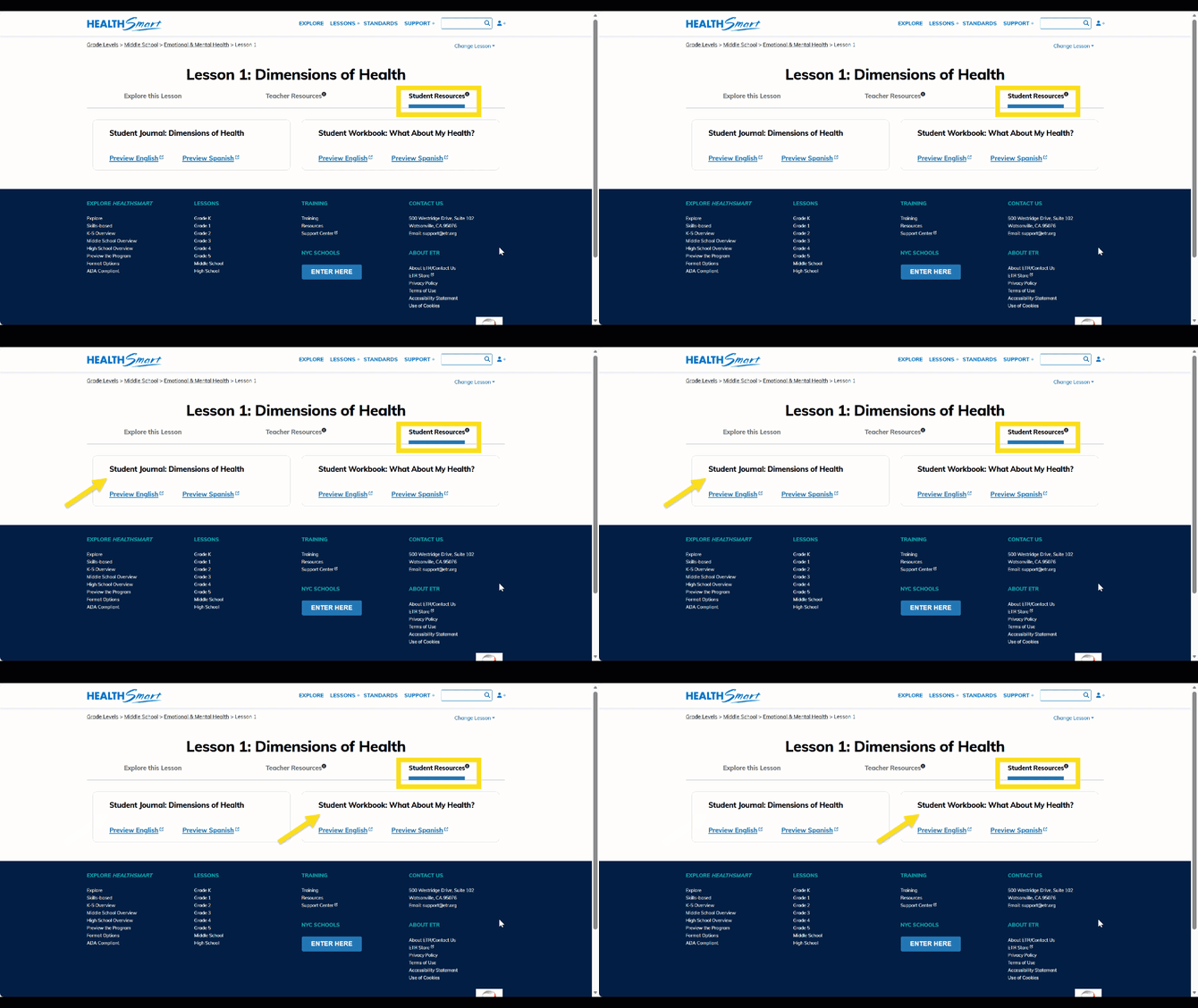
Student Resources
On the Student Resources page, you'll typically find:
| What Is It? | What It's For? | How to Use It? |
|---|---|---|
| Student Journal | A reflective journal page for students to complete in the beginning of the lesson. This serves as the "Do Now" or the lesson opener | Preview in English or Spanish then print or assign digitally |
| Student Activity Sheets | A more in-depth worksheet or activity related to the lesson | Preview in English or Spanish – great for homework, classwork, or assessment |
🗒️Note: The screenshot shows two files, but some lessons may have additional student handouts, activity sheets, or self-assessments. Just scroll and see what's there!